HTML Elements
Each element is rendered on screen in the order it appears in your code. This is know as the “flow.”
Most elements have an opening and closing tag, with some content in between:<p>This is paragraph text.</p>
A few elements are self closing—they have no corresponding closing tag:
<hr />horizontal rule<br />line break
Elements can be nested within each other, from the largest and most general to the smallest and most specific. Each element must be closed after each element within it has been closed.
<div> <p>This is the first paragraph within this div.</p> <p>This is the second paragraph within the div.</p> </div>Block vs Inline Elements
Block elements by default cause a line break. That is, elements following will appear on a new line in the browser. (CSS styles can override this behavior.) Block elements can have a width and height applied to them with CSS.
Inline elements by default do not cause a line break. That is, elements following will appear on the same line in the browser, as long as there is room. If there is no room, the element will flow to the next line. (CSS styles can override this behavior.)
Structural
Structural elements determine the hierarchical importance and flow of the page, while also giving meaning to the content within.
Structural (block)
<div>divisions<h1>through</h6>headings<p>paragraphs<ol>,<ul>lists<li>list items
Structural (inline)
<b>bold<i>italic<a>anchor (links) <span>
Semantic
Semantic tags give extra meaning to content, like where to place <em> emphasis in a sentence. HTML5 contains semantic elements that define the meaning of different parts of a page:
<header>
<nav>
<main>
<section>
<article>
<aside>
<figure>
<footer>
<div id="sidebar"><a href="http://twitter.com/djlicata">Follow me on Twitter.</a> <img src="images/twittericon.png"> <div>
Element Attributes
HTML elements can have attributes, which provide additional information about that element. Attributes are always specified in the start tag.
Attributes come in name/value pairs like: name="value"
These attributes can be applied to any HTML element:
- class – one or more class names
- id – a unique identifier for that element
- style – an inline CSS style
- title – extra info that shows up as a tooltip
For a complete list of HTML elements and available attributes, see MDN’s HTML5 Reference.
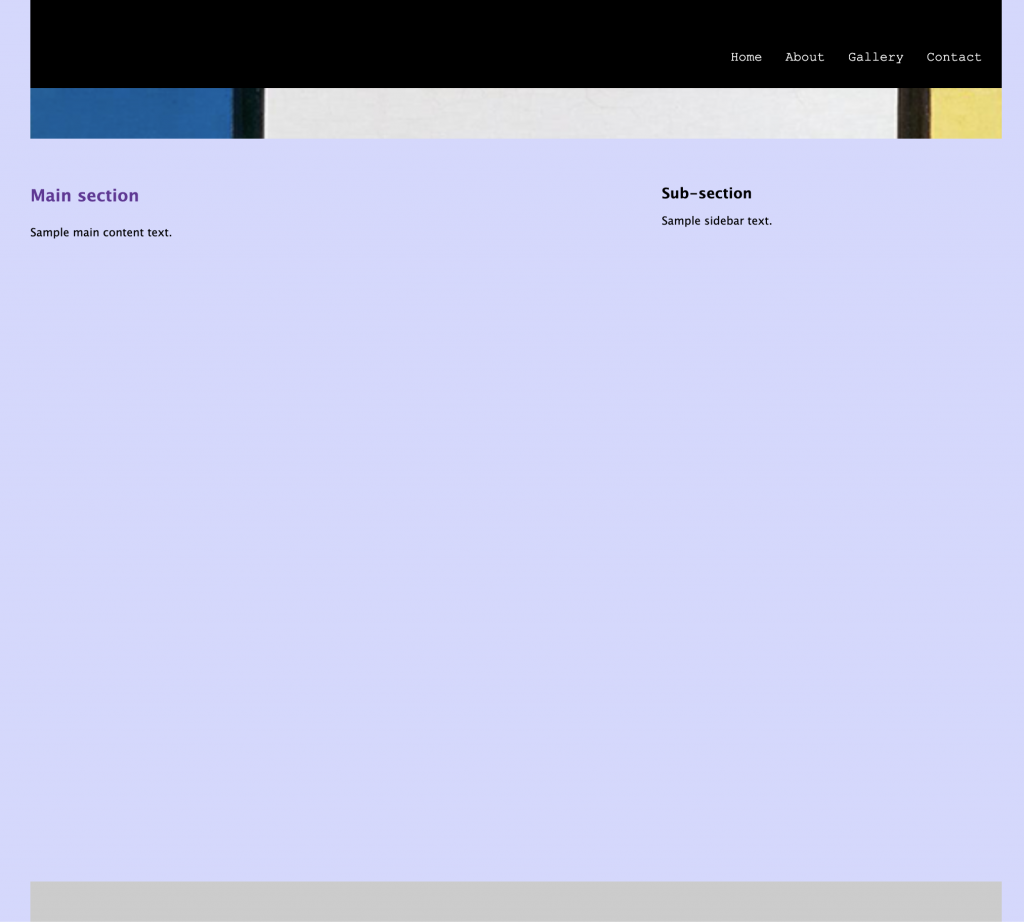
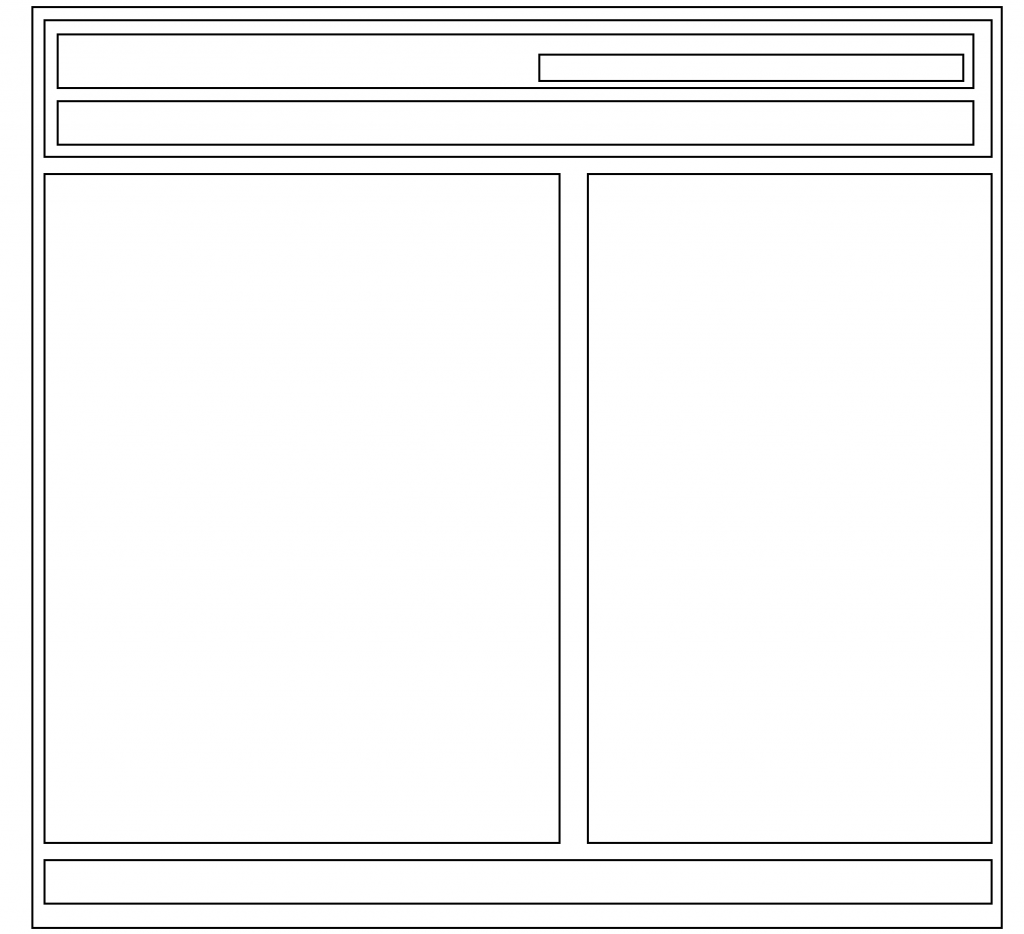
Compare the Wireframe and Final Versions of Our Page Design
Create a Simple HTML Structure
Instructions
1. Copy the HTML code below, then paste it into a new VS Code document titled index.html.
Once pasted, hit shift-option(alt)-F to Format.
<!DOCTYPE html>
<html lang="en">
<head>
<meta charset="UTF-8">
<title>ART 320 Exercise 03</title>
<meta name="viewport" content="width=device-width, initial-scale=1.0" />
<link href="style.css" rel="stylesheet">
</head>
<body>
</body>
</html>
2. Save index.html into a folder titled yourlastname-ex03.
3. Create a framework for content within <body>.
Elements should appear in this order:
#wrapper – contains all elements
<header> contains a <nav> element and a <div id=”banner”> which will later display a background-image to be added in the CSS.
<nav> contains four clickable list items <li> inside an unordered list <ul>: Home, About, Gallery and Contact. The contents of the <li> will be a clickable name of each page having this structure: <a href="index.html" title="Home">Home</a>, changing the file name, title and text as appropriate.
After <nav> closes, create a <div id="banner">.
After <header> closes flow two elements <main> and <aside>.
Following the closing of <header> will be a <main> element, an <aside> element, and a <footer> element. The <main> element should have an header 1 <h1>, and a couple paragraphs <p>. The <aside> element should have an <h2> and a paragraph <p>. The <footer> can remain empty.
5. Change headings and insert paragraphs.
- Add some headline text between the
<h1>tags. - After the
<h1>tags, add two paragraphs using <p></p>, and fill them by typing “Lorem” and hit Return. - Change the <h2>
<aside>text and add a <p>.
Once you’ve made an attempt to complete the above code on your own, reveal the following Code Solution and check your work:
Code Solution
<div id="wrapper"><header><nav><ul><li><a href="index.html" title="Home">Home</a></li><li><a href="about.html" title="About">About</a></li><li><a href="gallery.html" title="Gallery">Gallery</a></li><li><a href="contact.html" title="Contact">Contact</a></li></ul></nav><div id="banner"></div></header><main><h1>Main section</h1><p>Sample main content text.</p></main><aside><h2>Sub-section</h2><p>Sample sidebar text.</p></aside><footer></footer></div> <!-- close wrapper -->
6. Insert a web-optimized image into the main content area.
- Right-click to download this image of a grey heron and move it into a folder titled images in your site folder. Change the name of the file to heron.jpg
- Open heron.jpg in Photoshop. Choose Image>Image Size, examine the file size. With Resampling checked, reduce the size to 400px wide.
- Choose File>Export>Save for Web (Legacy)… Change to 4-Up view. In each quadrant, experiment with different file types and quality settings to determine which option gives you the best quality a the lowest file size. Hit Save, change the name to heron.jpg, and save it to your images folder.
- Note: JPEGS are almost always the best format for photorealistic images, while GIF and PNG tend to work better for graphics, shapes, text, etc.
- Images should be no more than around 100kb for medium size. Every image on the page adds to page-load time.
- Place this code between your two paragraphs, using the correct image filename that matches your file, and alt text:
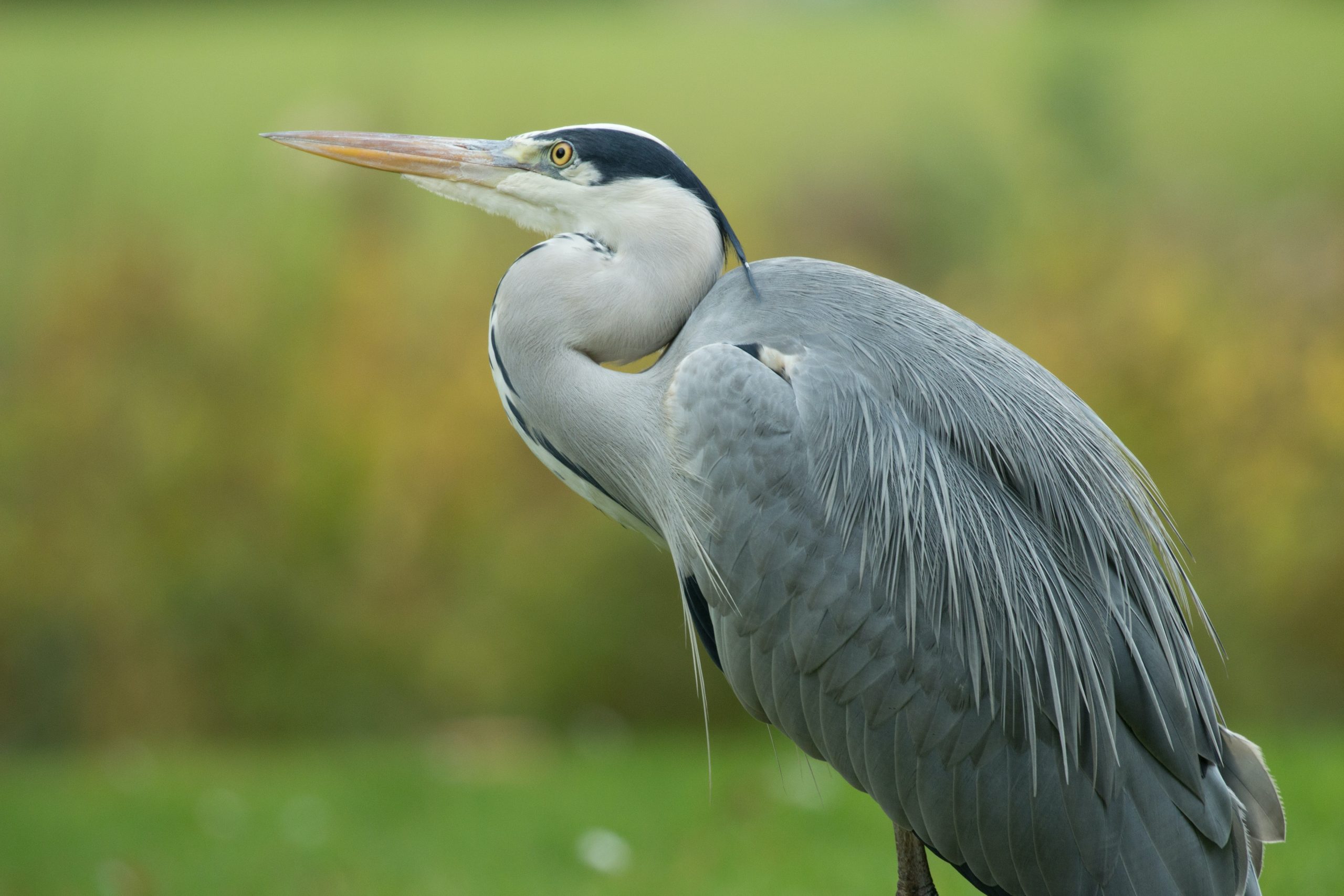
<img src="images/heron.jpg" alt="close-up of a grey heron" />