
Connect to UBuffalo.art via SFTP (Cyberduck)
1. Setup your SFTP client. If you are using your personal computer, download and install the free version of Cyberduck. (Do not get it from the Microsoft or Apple stores — they will charge you.)
2. If you’re using a Mac, choose Cyberduck>Settings and click SFTP> Set Cyberduck as your default SFTP handler, and then Editor, set Visual Studio Code as the text editor, and check “Always use”.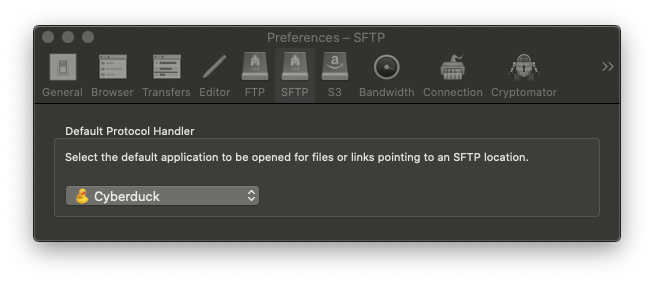
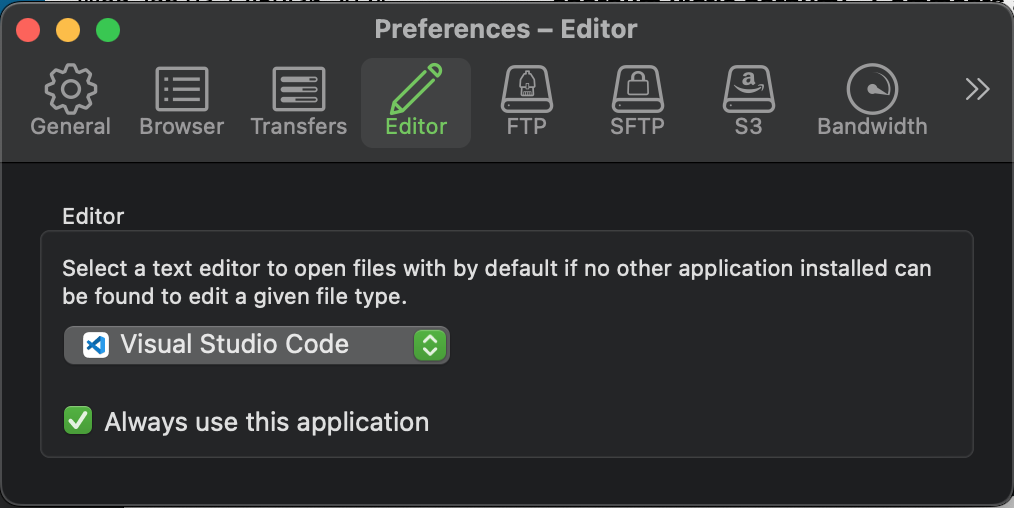
If you are using a PC, you can go to Edit>Preferences>Editor and set Visual Studio Code as the text editor. Check “Always use”.
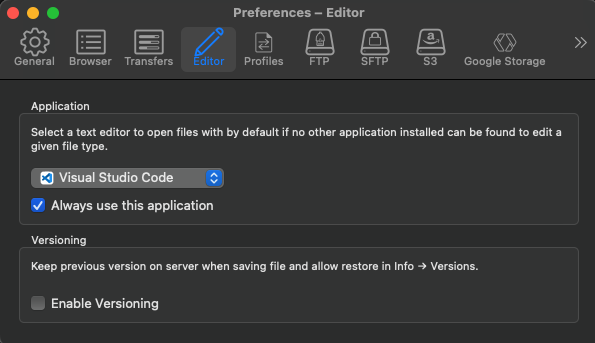
3. In Cyberduck, choose File>New Browser, the File>Open Connection.
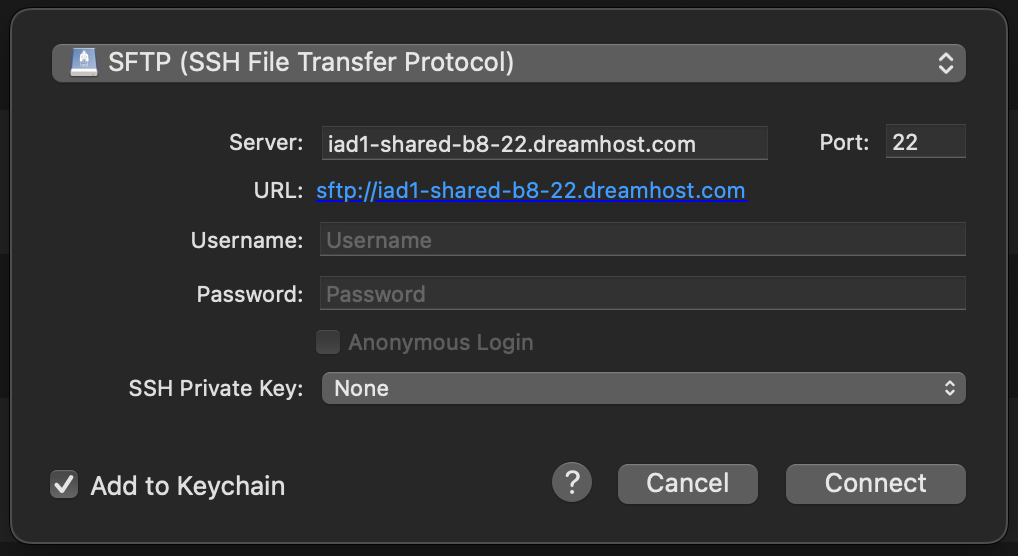
- From the menu at the top, choose the SFTP protocol.
- Enter server “iad1-shared-b8-22.dreamhost.com”, and the user name and password that were given to you.
- On a Mac, check Add to Keychain for the computer to remember your password for next time.
- Hit “Connect”.
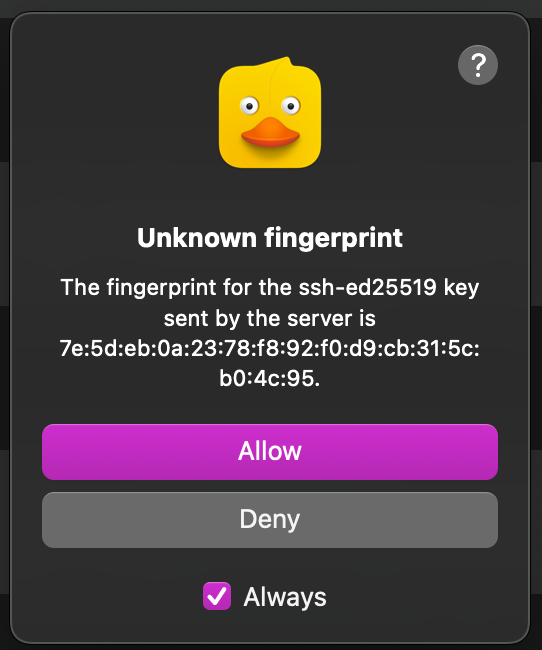
4. When you see the “Unknown Fingerprint” warning, check “Always” then click “Allow”.
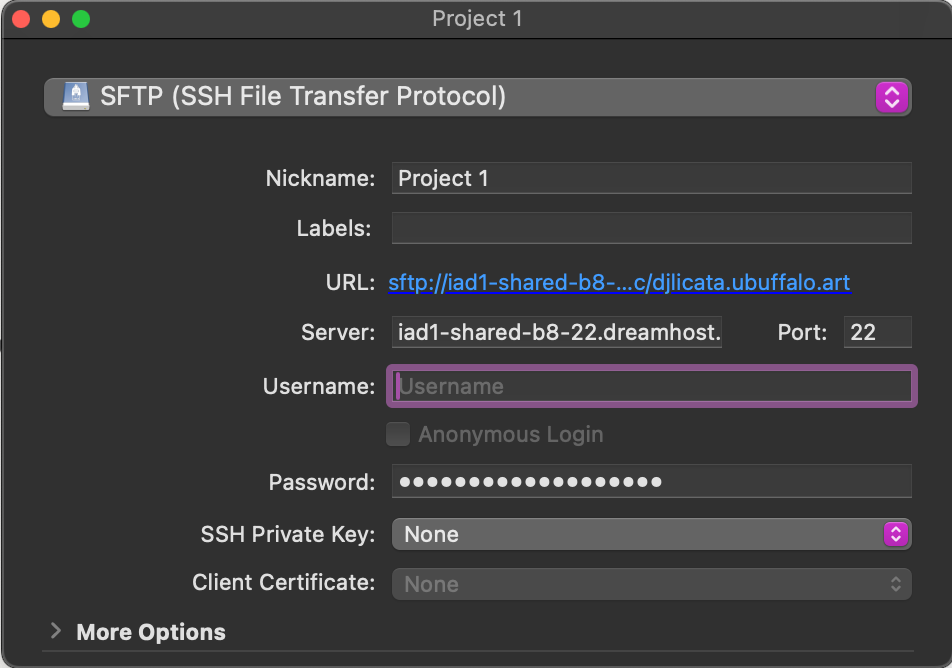
5. Double-click the folder USERNAME.ubuffalo.art. Choose Bookmark>New Bookmark to save this connection info to make subsequent logins easier. (Enter a Nickname, such as Project 1, to help you identify this bookmark.)
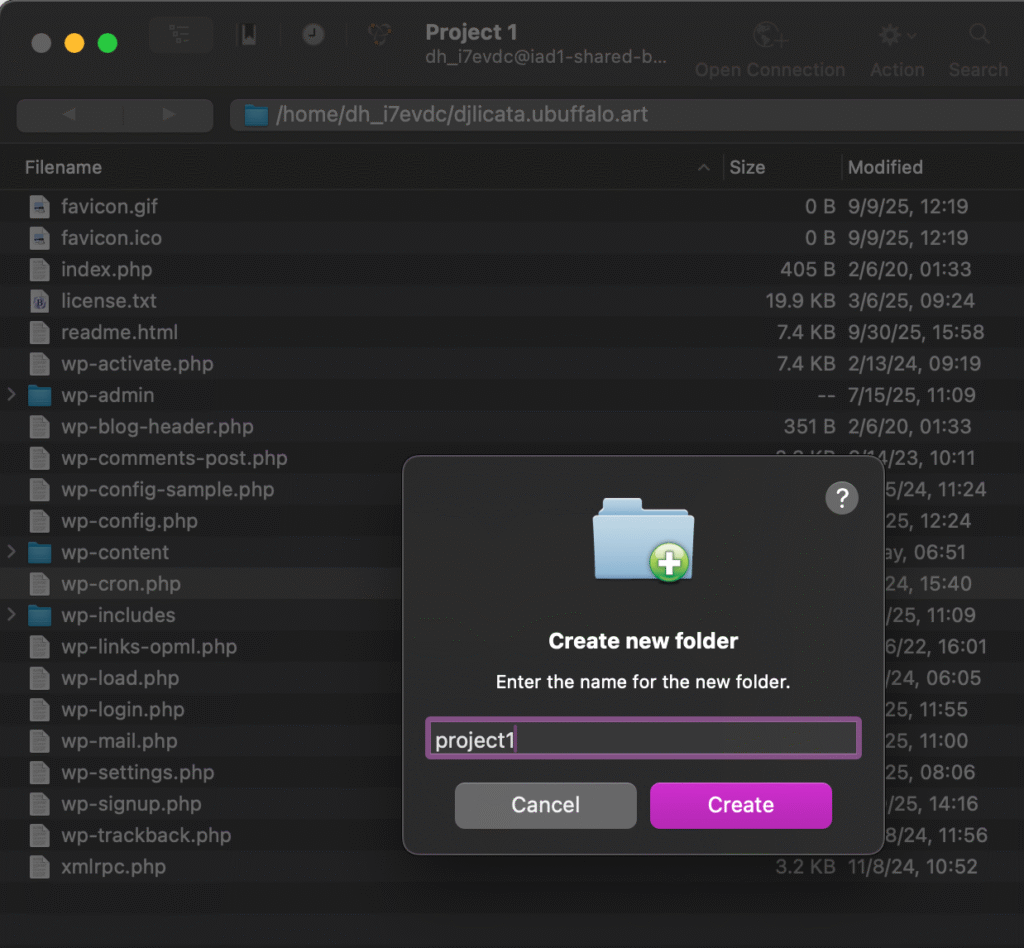
7. In this folder you will see a WordPress installation, which will not be used at this time. Right-click in this folder to create a New Folder named “project1”.
8. Double=click to open the new project1 folder. Drag your project 1 files into this folder. Be sure the files exist at the top level of the project 1 folder, that is, do not have them sitting in a sub-folder. (You may again be asked for your user name and password.
8. View your site in your browser by typing in your Site URL followed by “/project1”. For example, https://USERNAME.ubuffalo.art/project1/.